

Digital experience management (DEM)
Optimize user experiences by ensuring every application is available, functional, fast, and efficient across every channel including mobile, web, IoT, and APIs.
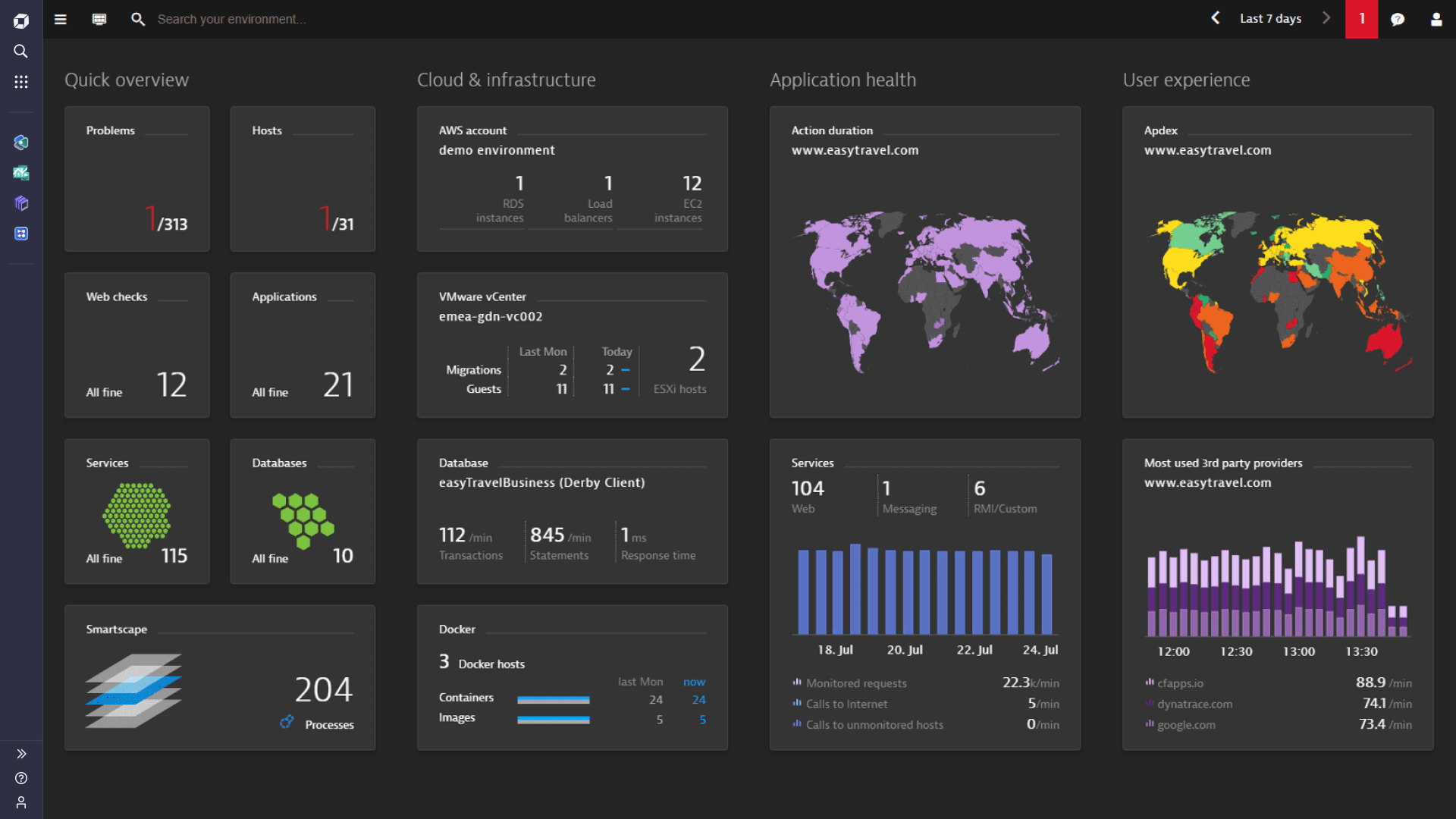
Interactive tour
Hear what your users are telling you
Stop guessing. Start optimizing. We use observability and advanced AIOps on a unified platform to give teams the precise, automated insights and context they need to proactively deliver better customer experiences and drive better business outcomes.
Take an interactive tour of the Dynatrace platform to see how.


Dynatrace provides full omni-channel insights
-
Real user monitoring
Analyze each customer's digital journey in real-time to optimize satisfaction.
- Monitor real user experience
- Problem resolution
-
Synthetic monitoring
Increase web application availability and performance SLAs globally.
- Simulate customer journeys
- ComPowered by AI, Dynatrace redefines digital experience managementpetitive benchmarking
-
Session replay
Session replay captures and visually replays the complete digital experience for every user across browsers, interfaces and devices.
Understand how performance impacts your bottom line
- Performance tuning based on real user experience and digital-business outcomes
- Optimize every single customer journey with actionable insights
- Better collaboration between business development and operations
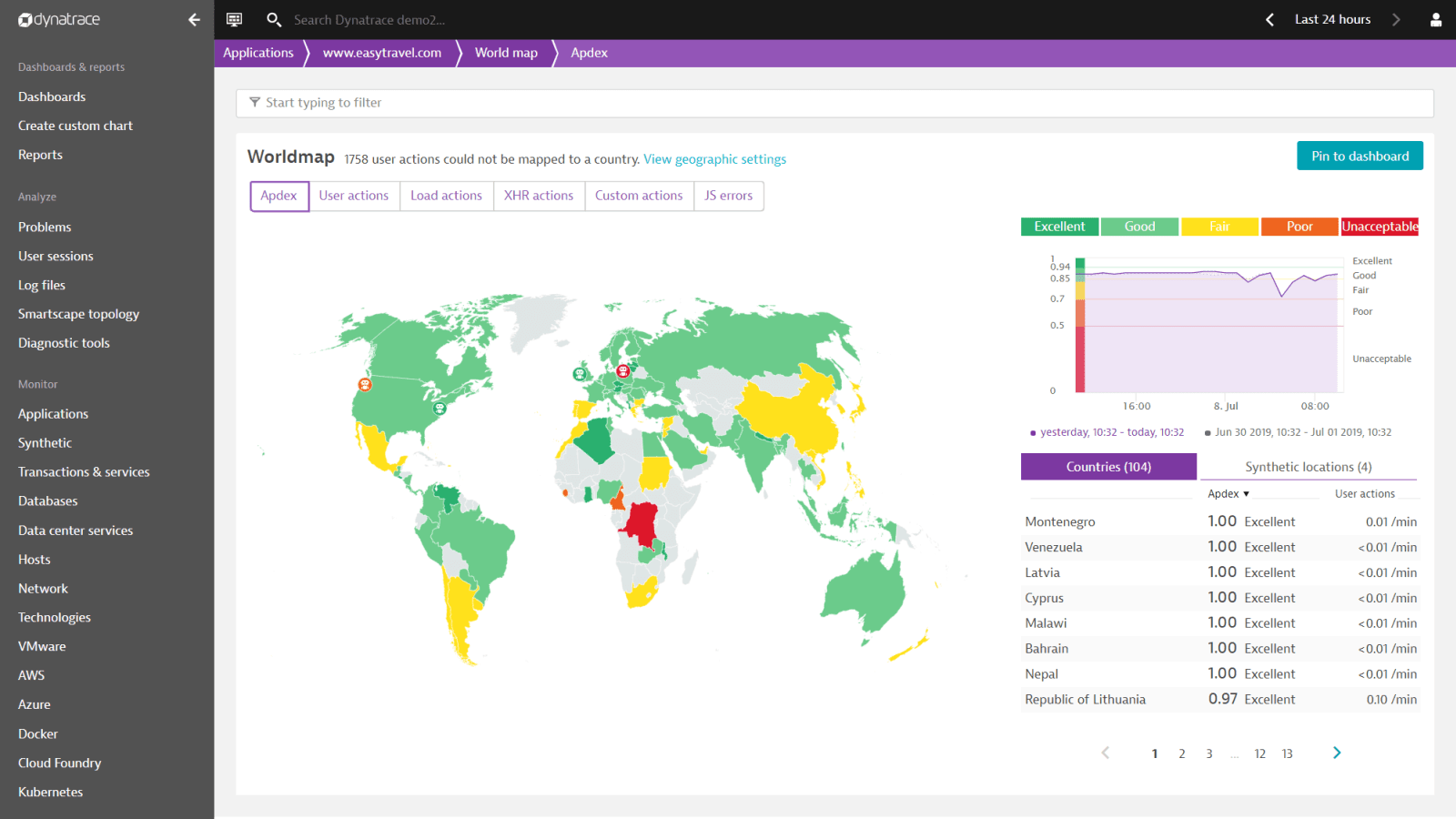
Fast complaint resolution
- Replay individual customer transactions for rapid problem handling
- Pinpoint issues and drill down to their root-causes
- Proactively manage customer experience and prevent poor app ratings
Dynatrace is a G2 Leader in Digital Experience Monitoring (DEM)

Optimize your digital experience with Dynatrace!

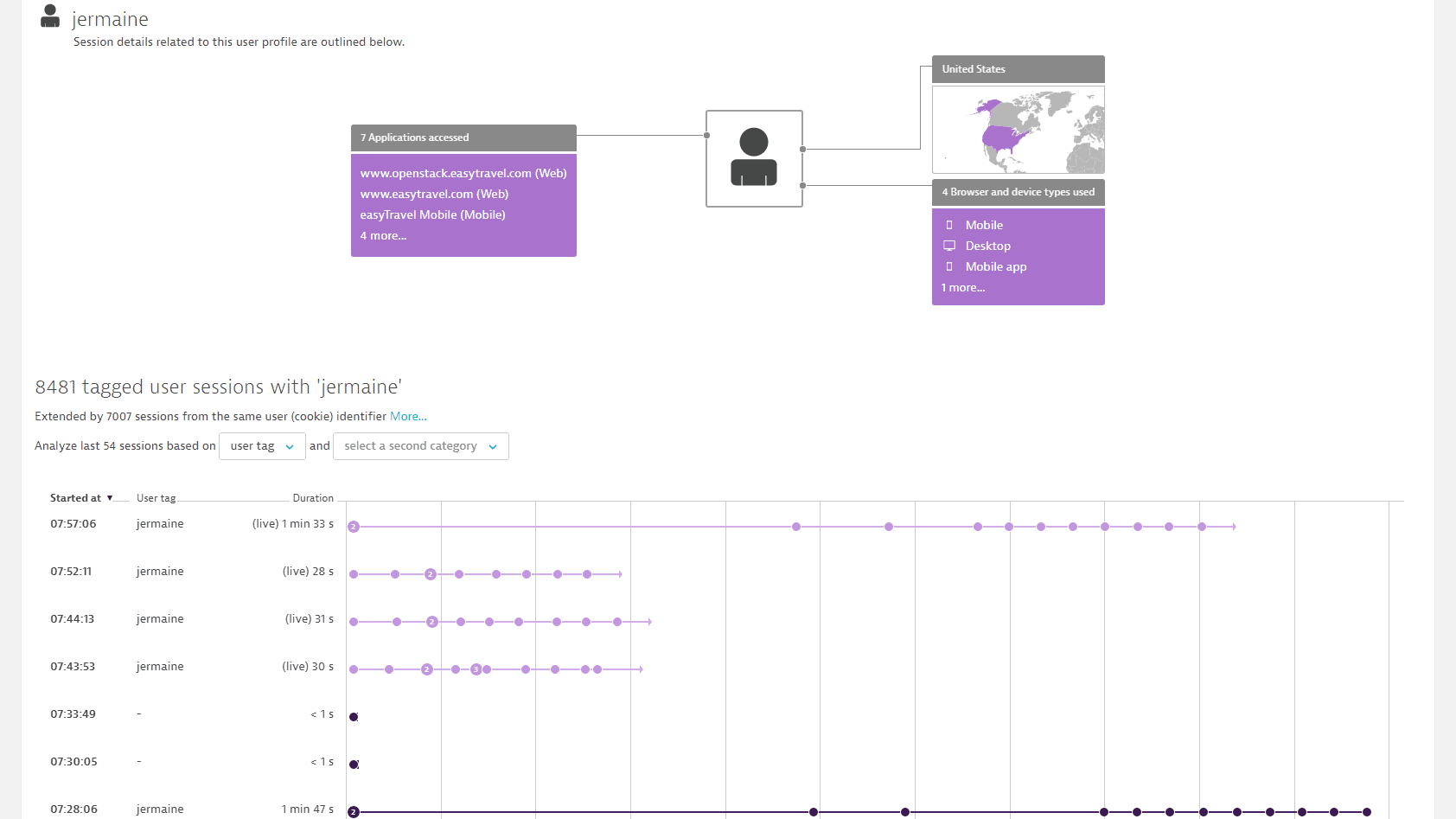
Gapless analyzes about your users
Dynatrace behavioral analytics provide out-of-the-box insights into user behavior powered by artificial intelligence, leveraging end-to-end monitoring of every single customer journey.
- Gapless insights: relevant entry points and conversions when optimizing performance.
- Track customer adoption: maintain focus on important new-feature development.
- Resolve problems: eliminate costly technical issues proactively.
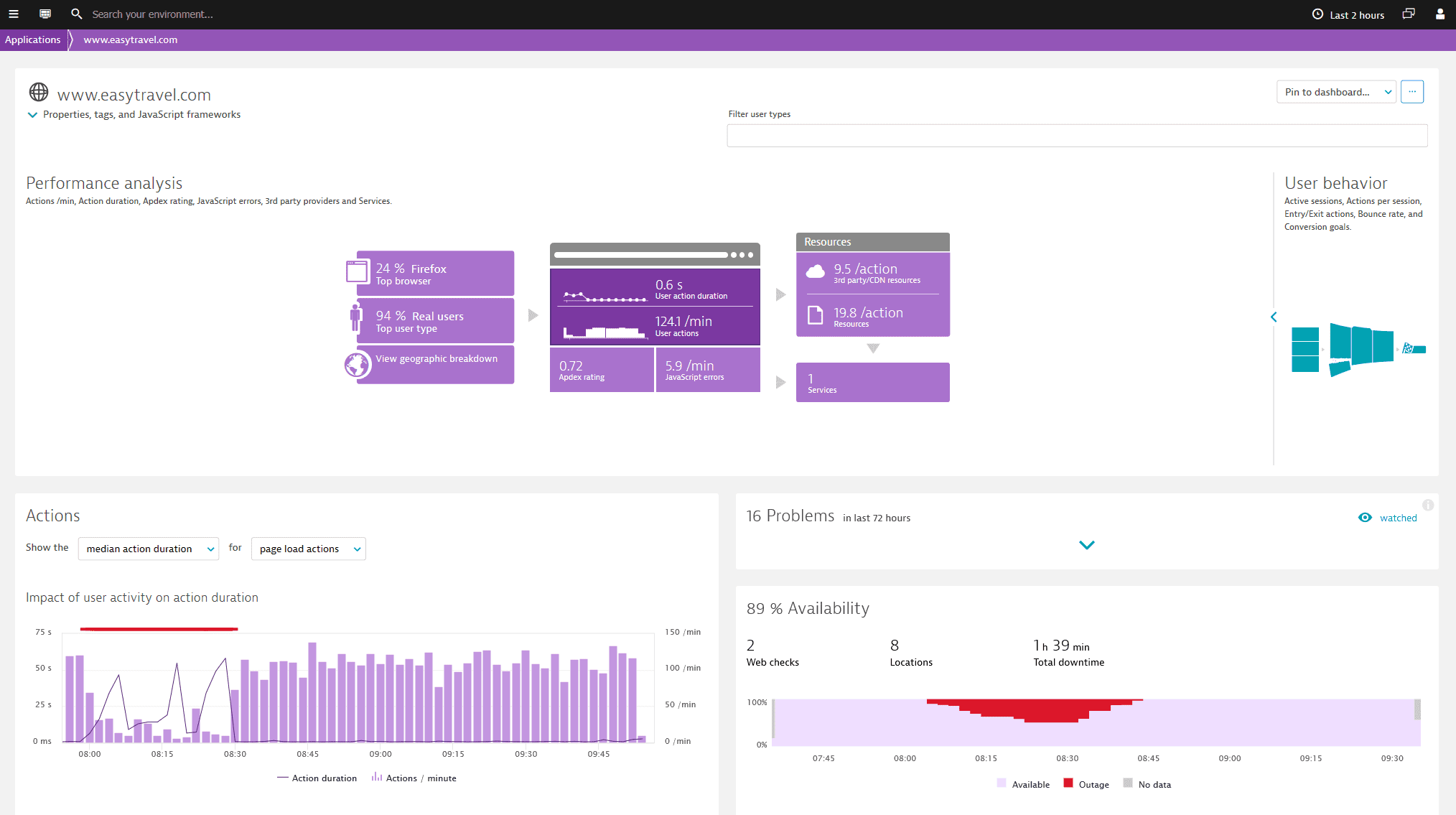
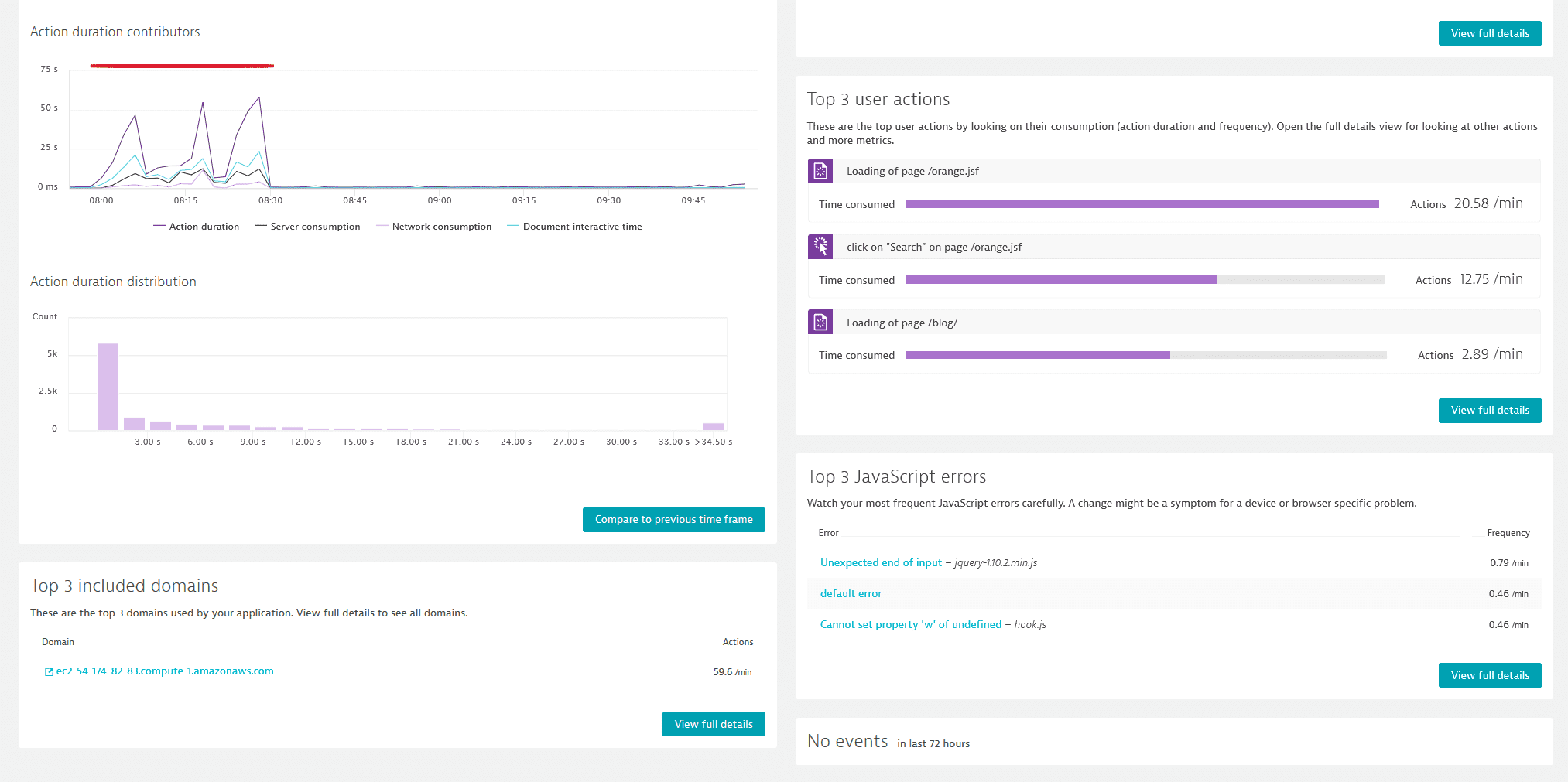
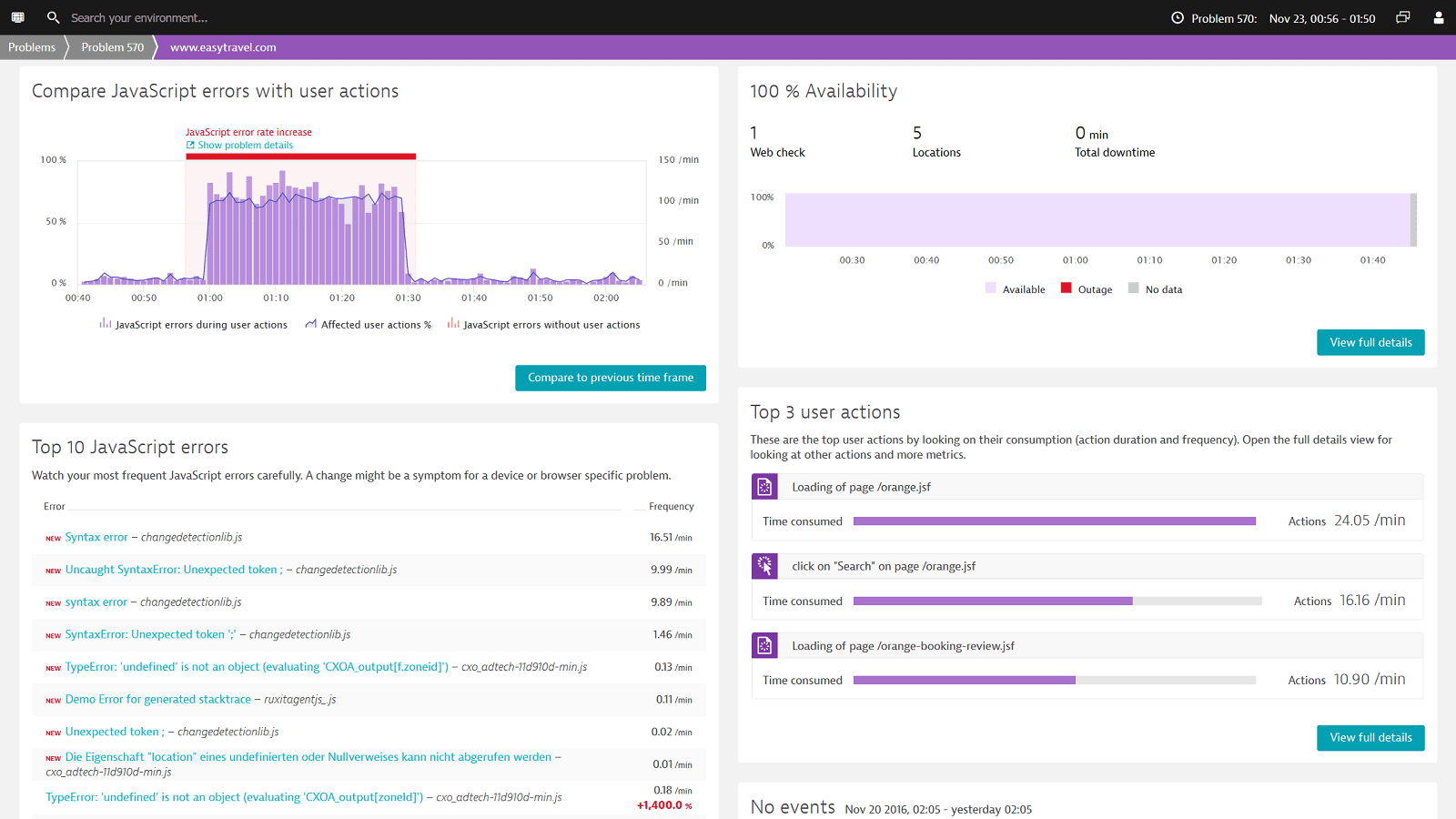
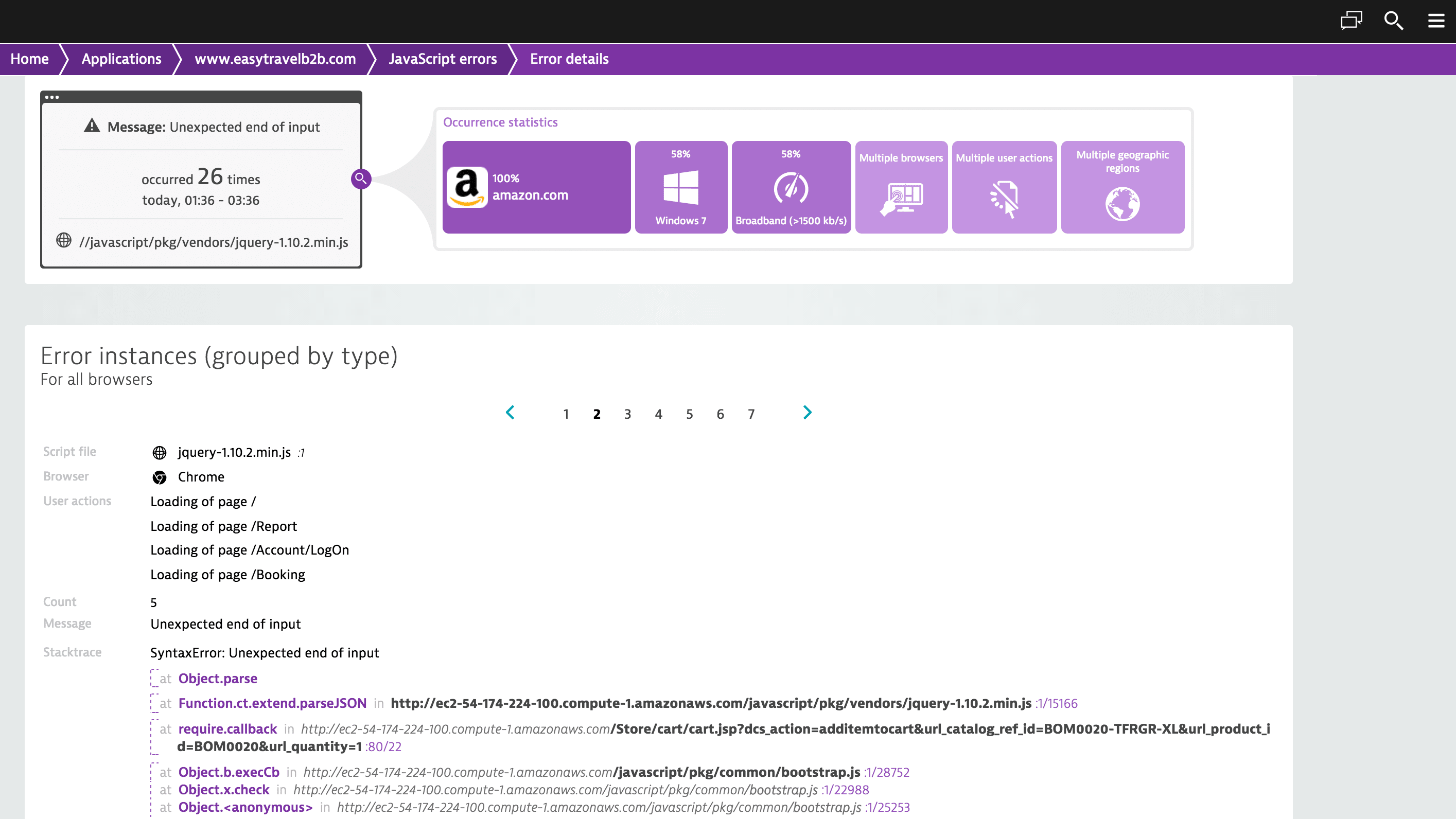
Identify coding errors immediately
Dynatrace finds for you errors on code level and provides an exact line number as well as a stack trace. On a single infographic you can have an overview of:
- The number of errors for a particular time frame
- The number of user actions being effected by the errors
- The distribution of browsers/versions on which the end users are experiencing them
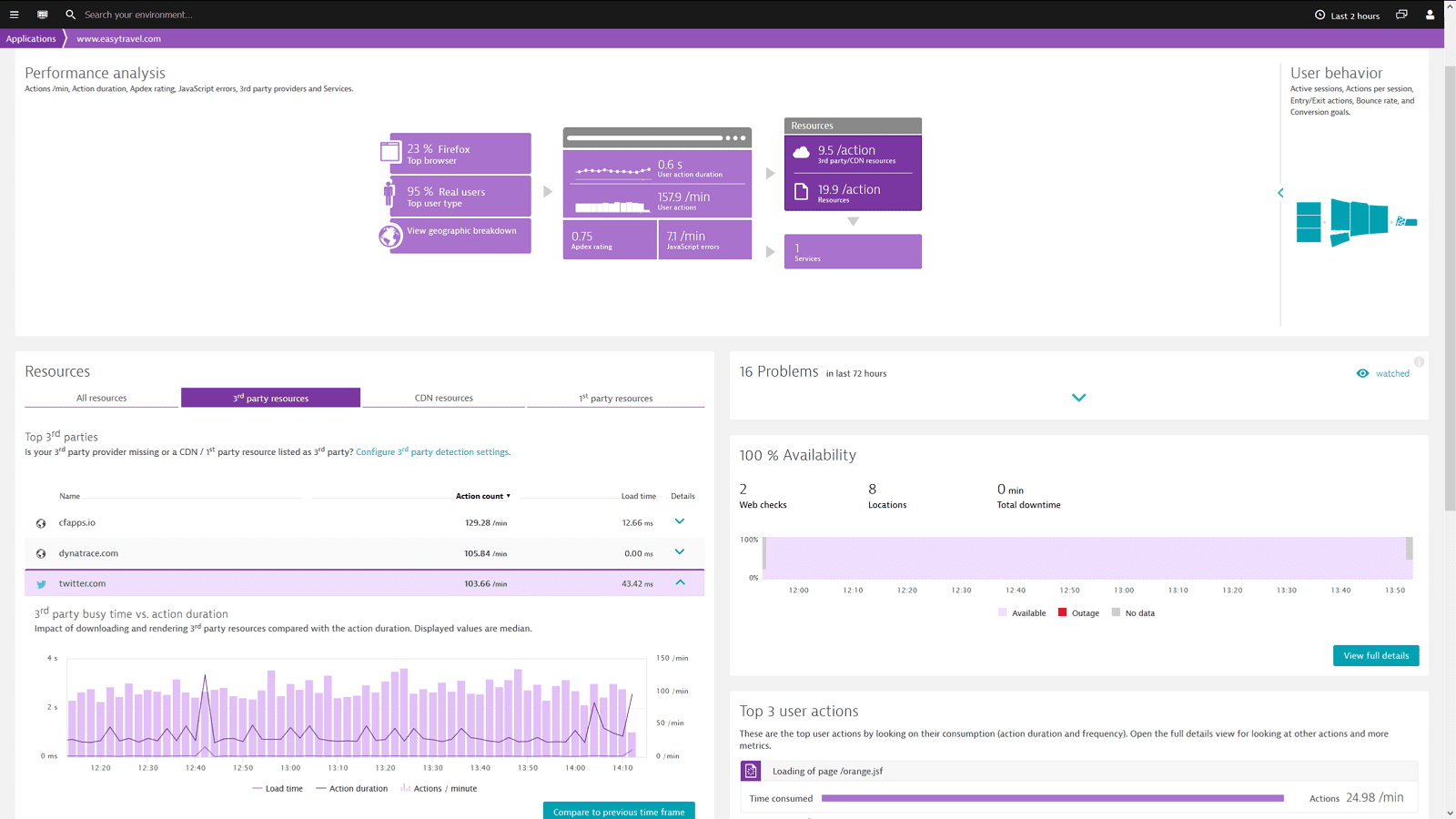
Manage your CDN & 3rd Party providers
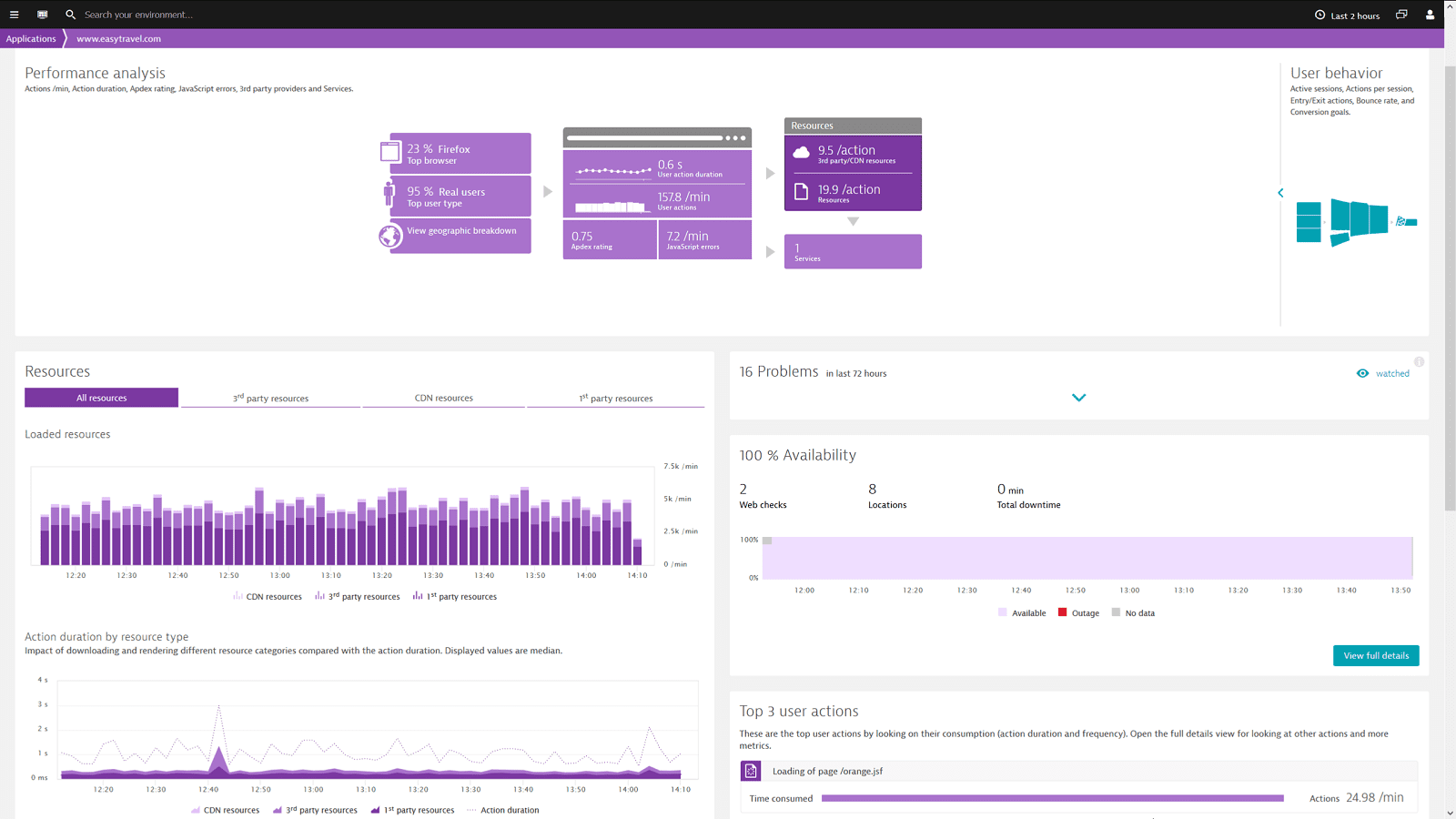
Up to 2/3 of your Single Page Application content is coming from your 3rd Party or CDN providers. Being aware about the errors and performance issues is key to understand the impact of them on your users and business results.
- See the performance of your 3rd Party providers through your users eye
- React if the performance of your CDN is bad in certain regions
- Watch if your providers meet their SLAs
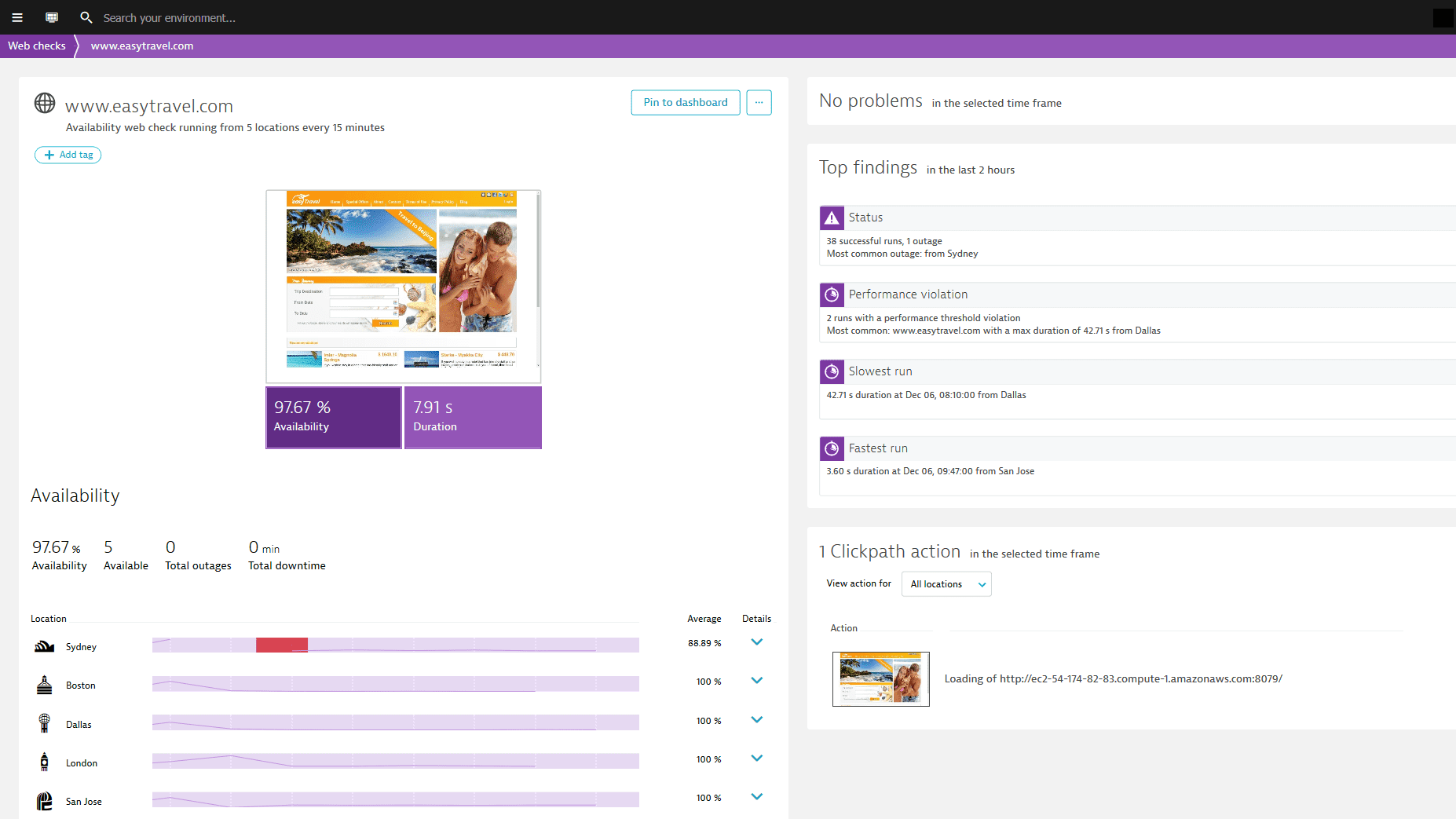
Monitoring your applications 24/7
Ensure that your apps are available and perform well across 5 continents to meet your SLAs.
- Dynatrace permanently checks availability, outages, total downtime and more crucial metrics
- Ensure that your key APIs, web pages and mobile pages perform properly from all customer locations.
- Dynatrace uses all major desktop and mobile browsers to comprehensively simulate customer journeys from thousands of locations around the world.
Powered by AI, Dynatrace redefines digital experience management
- Integrated view of the user experience across all mobile and web applications
- Full stack monitoring including backend services performance
- Ensure web applications are available and performing to meet SLAs
- Manage CDN and 3rd party performance
- Artificial intelligence automatically pinpoints reason for underlying performance issues
- Proactive problem analysis




A Leader in the 2023 Gartner® Magic Quadrant™ and ranked #1 in the Critical Capabilities for APM and Observability reports
See why we’re positioned furthest for Vision and highest for Execution in the Magic Quadrant, and ranked #1 in all Use Cases in the Critical Capabilities Report for Application Performance Monitoring and Observability.


Start your 15-day free Dynatrace trial today!
Want to see what intelligent observability powered by AI and automation can do for you? Get a free trial of the Dynatrace platform now.